To install a OJS custom theme developed by GeniusDesign, follow the steps below.
How to install the theme plugin in OJS
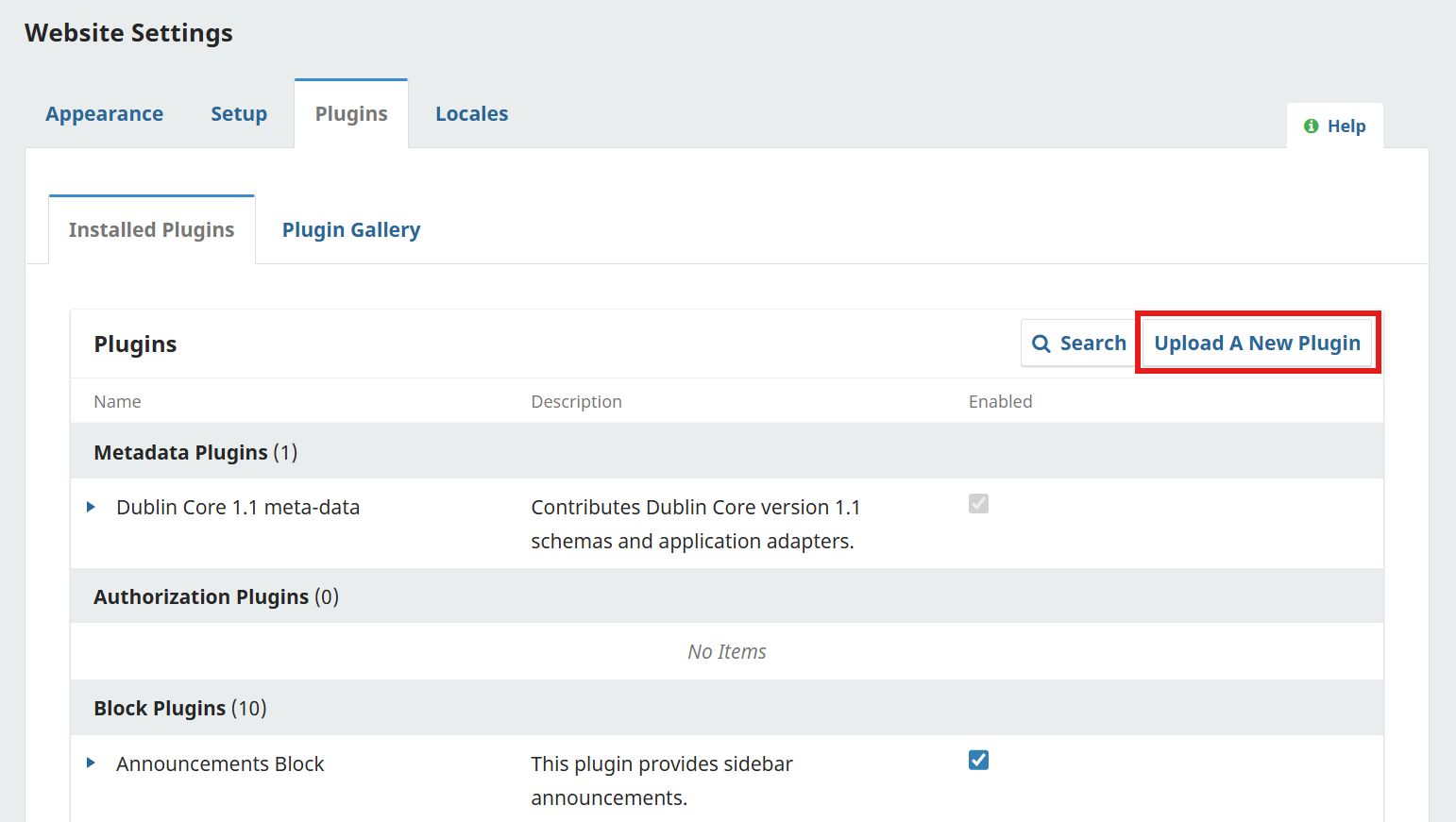
1. Log in as an administrator in your OJS dashboard and navigate to Settings → Website → Plugins. Then click “Upload a New Plugin”.
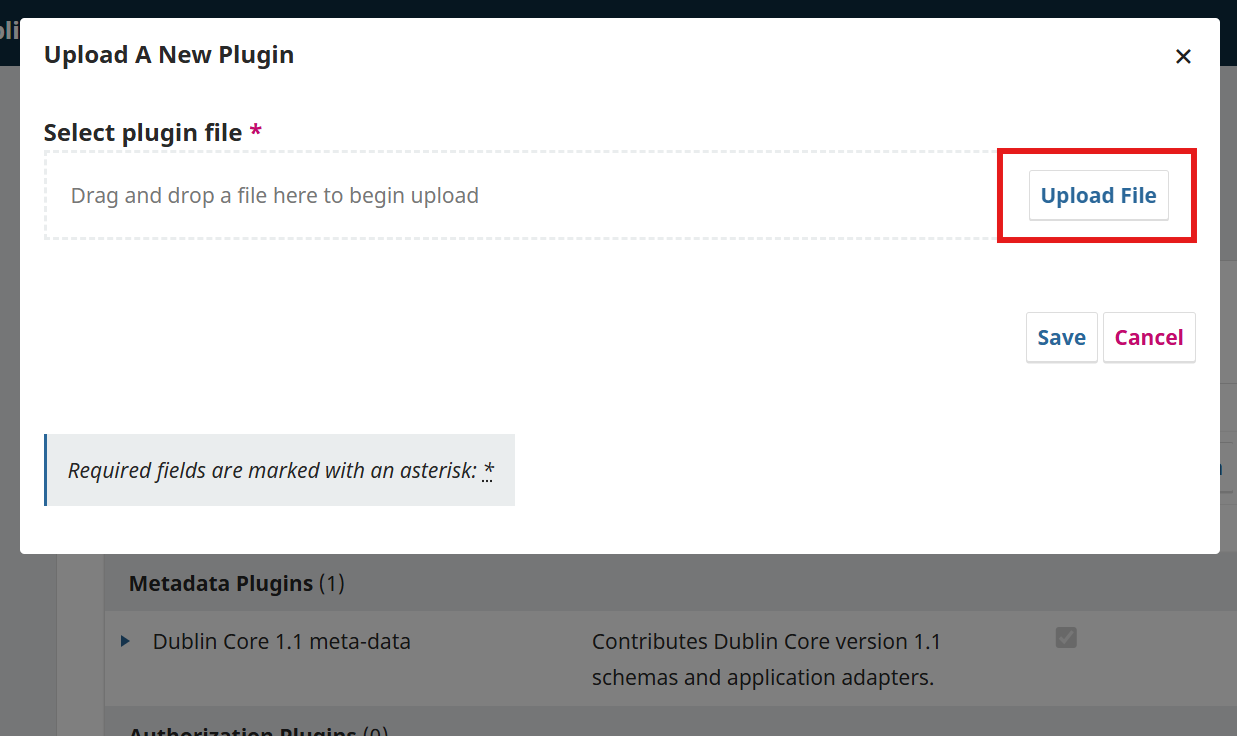
2. After clicking the button, a modal window will appear with an upload field. Click “Upload File” to select the theme file developed by GeniusDesign from your computer, or drag it into the designated area to start the upload automatically. Once the upload is complete, click “Save”.
3. After saving, the modal window will close. Scroll down to the bottom of the page and locate the “Theme Plugins” section. Find the installed theme (its name will begin with GD). You will notice it is disabled. Use the checkbox field on the right side of the theme entry to activate it.

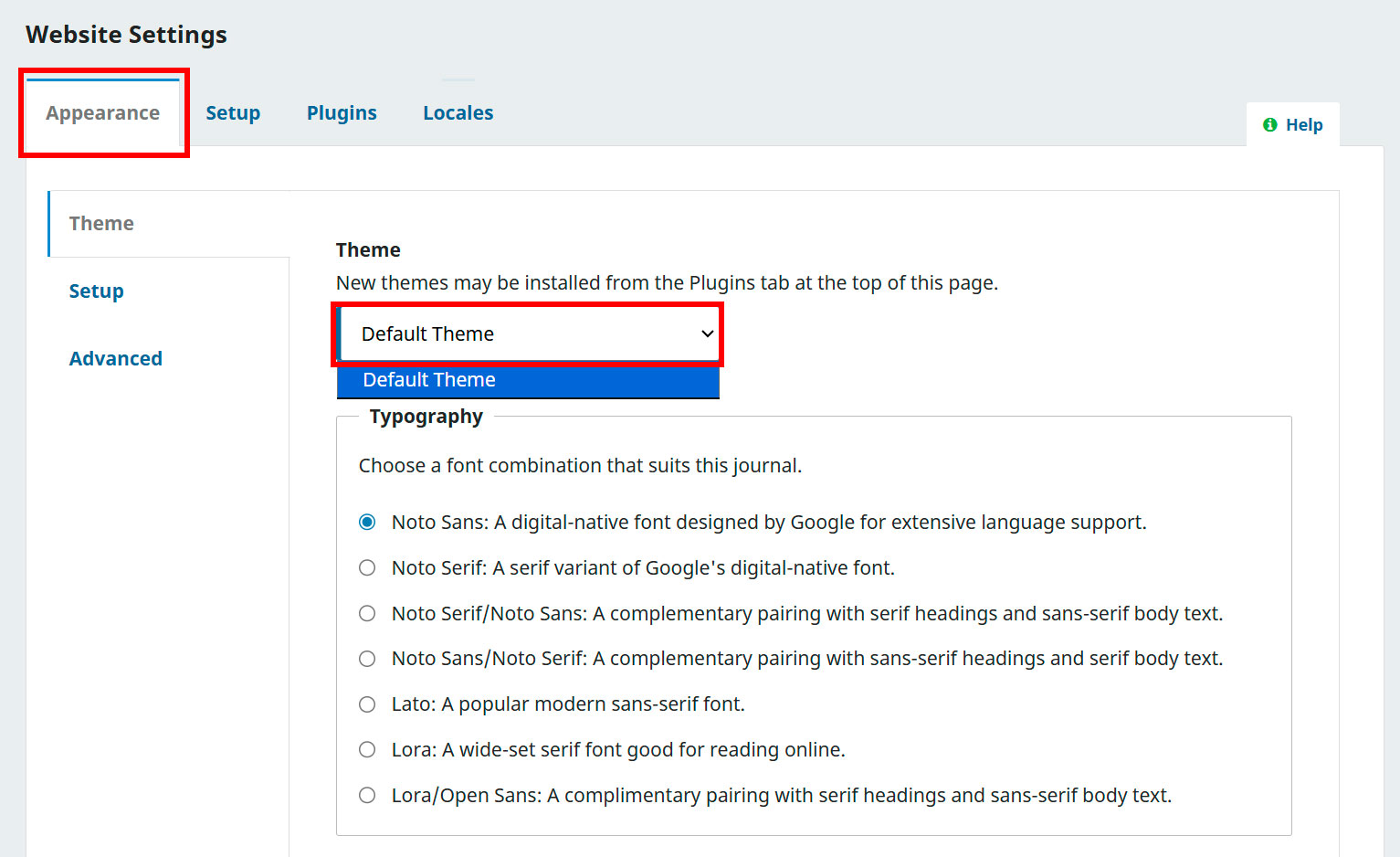
4. After activating it, go to the “Appearance” tab and select the theme in the Theme selection field. If the installed theme does not appear immediately, refresh the page and select it..
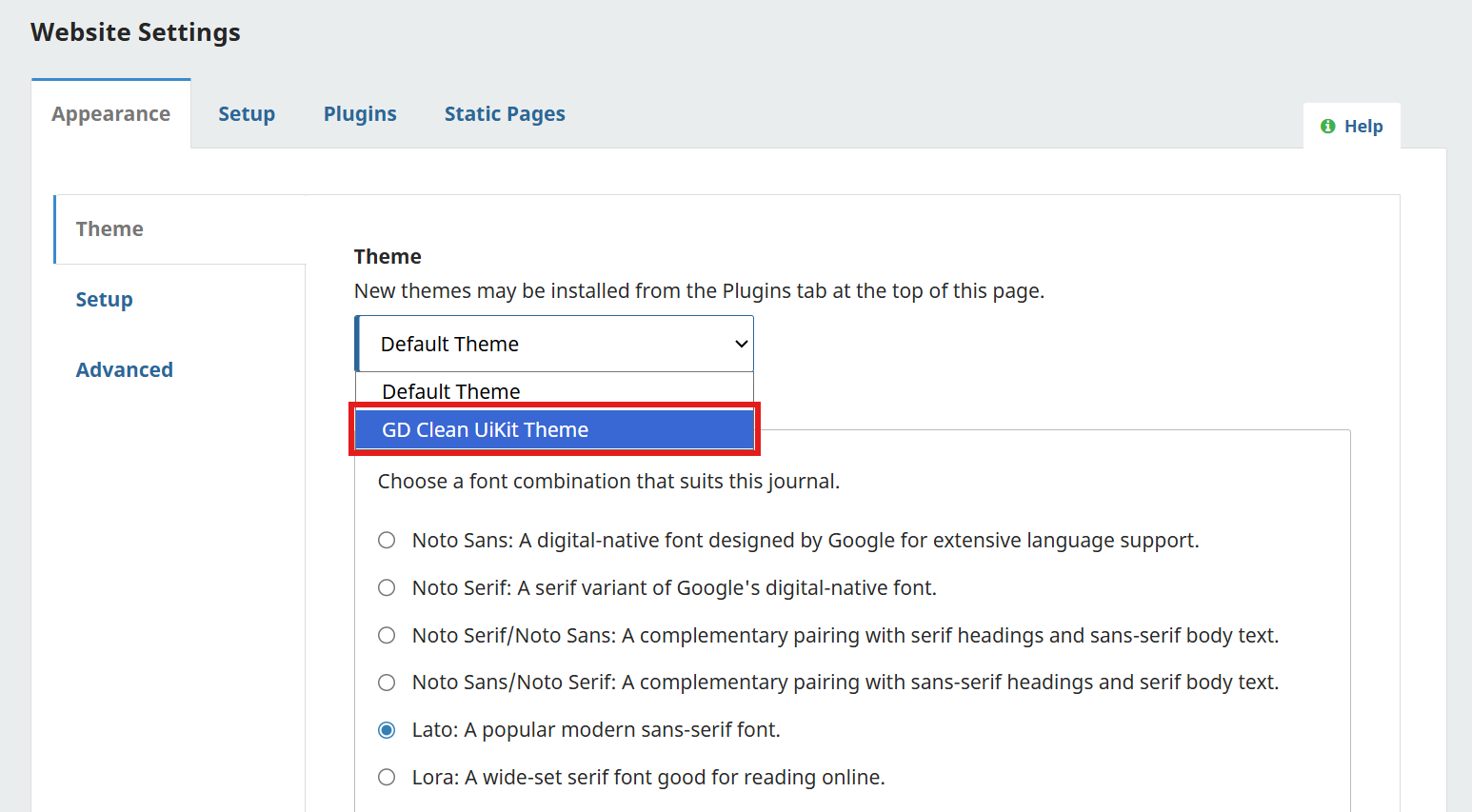
5. Once selected, the theme description and configuration options will load on screen, indicating that it has been properly installed.
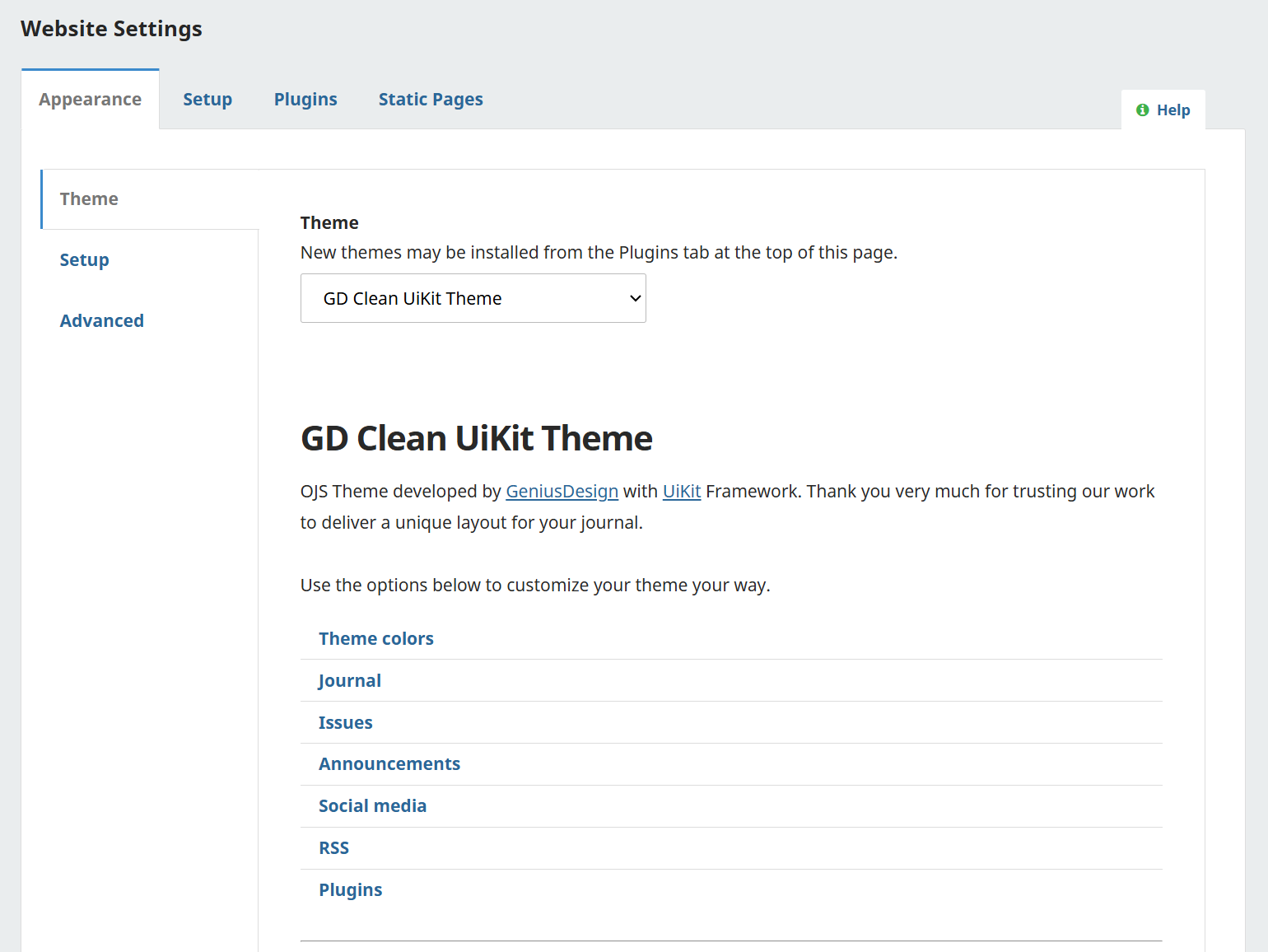
6. Scroll to the bottom of the page and click “Save".

